Laman

Minggu, 01 Agustus 2021

Aktivasi Office 2019 tanpa license key permanen ataupun Software

Disarankan saat akan mengeksekusi trik aktivasi, terlebih dahulu mematikan Windows Defender dan juga software antivirus di Windows yang memungkinkan akan menghalangi proses aktivasi Office 2019. 
 
Baiklah langsung saja kita ke proses aktivasi dari Microsoft Office 2019 berikut ini.

Instruksi aktivasi Office 2019 legal dengan CMD

1. buka Notepad, lalu copy kode di bawah ini

 @echo off

title Activate Microsoft Office 2019 ALL versions for FREE!&cls&echo ============================================================================&echo #Project: Activating Microsoft software products for FREE without software&echo ============================================================================&echo.&echo #Supported products:&echo - Microsoft Office Standard 2019&echo - Microsoft Office Professional Plus 2019&echo.&echo.&(if exist "%ProgramFiles%\Microsoft Office\Office16\ospp.vbs" cd /d "%ProgramFiles%\Microsoft Office\Office16")&(if exist "%ProgramFiles(x86)%\Microsoft Office\Office16\ospp.vbs" cd /d "%ProgramFiles(x86)%\Microsoft Office\Office16")&(for /f %%x in ('dir /b ..\root\Licenses16\ProPlus2019VL*.xrm-ms') do cscript ospp.vbs /inslic:"..\root\Licenses16\%%x" >nul)&(for /f %%x in ('dir /b ..\root\Licenses16\ProPlus2019VL*.xrm-ms') do cscript ospp.vbs /inslic:"..\root\Licenses16\%%x" >nul)&echo.&echo ============================================================================&echo Activating your Office...&cscript //nologo ospp.vbs /unpkey:6MWKP >nul&cscript //nologo ospp.vbs /inpkey:NMMKJ-6RK4F-KMJVX-8D9MJ-6MWKP >nul&set i=1
:server
if %i%==1 set KMS_Sev=kms7.MSGuides.com
if %i%==2 set KMS_Sev=kms8.MSGuides.com
if %i%==3 set KMS_Sev=kms9.MSGuides.com
if %i%==4 goto notsupported
cscript //nologo ospp.vbs /sethst:%KMS_Sev% >nul&echo ============================================================================&echo.&echo.
cscript //nologo ospp.vbs /act | find /i "successful" && (echo.&echo ============================================================================&echo.&echo #My official blog: MSGuides.com&echo.&echo #How it works: bit.ly/kms-server&echo.&echo #Please feel free to contact me at msguides.com@gmail.com if you have any questions or concerns.&echo.&echo #Please consider supporting this project: donate.msguides.com&echo #Your support is helping me keep my servers running everyday!&echo.&echo ============================================================================&choice /n /c YN /m "Would you like to visit my blog [Y,N]?" & if errorlevel 2 exit) || (echo The connection to my KMS server failed! Trying to connect to another one... & echo Please wait... & echo. & echo. & set /a i+=1 & goto server)
explorer "http://MSGuides.com"&goto halt
:notsupported
echo.&echo ============================================================================&echo Sorry! Your version is not supported.&echo Please try installing the latest version here: bit.ly/aiomsp
:halt
pause >nul

2. paste pada notepad 

3. simpan filenya, beri nama 1click.cmd 

4. Klik kanan pada 1click.cmd kemudian klik Run As Administrator 

5. Command Prompt akan langsung terbuka melakukan proses aktivasi Office 2019 di komputer anda

6. Jika sudah berhasil maka akan muncul tampilan seperti ini.

Berhasil Aktivasi Office 2019 Legal

Selasa, 16 Maret 2021

Cara instal Autodesk AutoCAD (2012) 86/64

Tahap-tahap instal Autodesk AutoCAD (2012) 86/64:

1. Siapkan File Instal Program AutoCAd
2. Tunggu hingga muncul jendela seperti ini
3. klik Install pada jendela yang muncul tersebut.


4. Pilih Country or region, pilih saja United States 


5. Lalu berikutnya  
Pada License Type pilih: Stand-alone
Pada Product information pilih I have my product information
masukkan pada kotak serial number :  666-69696969, 667-98989898 atau 400-45454545
dan pada Product key: 001D1


 6. lalu klik next dan berlanjut seperti ini, anda bisa ganti Installation path pada folder selera anda atau biarkan saja. lanjut klik instal.


7. Tunggu hingga selesai seperti ini lalu klik finish.


8. lalu Restart Autodesk Autocad dan matikan koneksi internet bila anda sekarang terkoneksi internet.

9. Setelah membukanya kembali klik Activate.


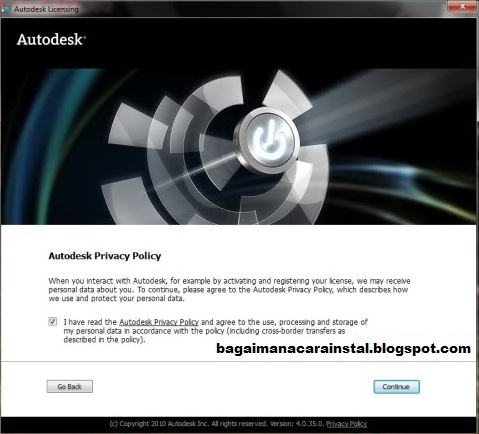
10. lalu muncul jendela seperti ini, beri tanda centang pada kotak I have read ... kemudian pilih continue

11. lalu pada jendela ini pilih "I have an activation code from Autodesk"


 12. Anda harus mengisi pada kotak Activation code, buka folder crack "keygen Autocad 2012.rar"  pada dvd anda yang berisi XFORCE Keygen 32bits untuk windows 32bit dan XFORCE Keygen 64bits untuk windows 64bits.

Password : mahapratty


13. lalu buka keygen sesuai bit anda, lalu klik Mem Patch, maka akan muncul jendela Success


Bila anda sering gagal melakukan mempatch ikuti cara ini
14. Copy/paste Request code nya lalu klik Generate.


15.Lalu anda akan dapatkan kode aktivasinya , kemudian anda isi kode-kode tersebut pada kotak-kotak yang tersedia. setelah terisi klik Next.


16. Klik Finish dan selamat mencoba.


CONGRATULATION !!!!!


sumber :

http://bagaimanacarainstal.blogspot.com/2011/11/cara-instal-autodesk-autocad-2012-8664.html

Kamis, 25 Februari 2021

Cara Mengatasi Start Menu Hilang Dengan Windows PowerShell


Berikut Cara Mengatasi Start Menu Hilang Dengan Windows PowerShell yang bisa kalian coba praktekkan:

  • Kalian buka Task Manager dengan menekan tombol Ctrl, lalu Shift, lalu Esc atau bisa juga dengan menekan tombol Ctrl, lalu Alt, lalu Delete di keyboard komputer atau laptopmu. Untuk lebih mudahnya bisa kalian klik kanan aja di Windows Taskbar lalu pilihlah Task manager.
  • Selanjutnya klik menu File yang ada di kiri atas Windows Task manager. Kemudian kalian pilih Run new task.
  • Jika jendela mini Create new task akan muncul, ketilah di kolom kosongnya: powershell.
  •  
Penting: 
Jangan lupa untuk mencentang di bagian Create this task with administrative privileges. Setelah itu klik OK.


  • Selanjutnya akan muncul jendela biru besar dari Windows PowerShell. Kemudian kalian tulis secara manual atau bisa kalian salin dan tempel (copy + paste) kode ini di bawah ini ke dalam Windows PowerShell yang sudah terbuka:
Get-appxpackage -all *shellexperience* -packagetype bundle |% {add-appxpackage -register -disabledevelopmentmode ($_.installlocation + "\appxmetadata\appxbundlemanifest.xml")}
  • Setelah di ketikan atau dimasukan ke Windows PowerShell, tekan tombol Enter agar Windows PowerShell mulai menjalankan perintah.
Masukkan Kode di PowerShell

Setelah proses di Windows PowerShell selesai. Kalian bisa lihat Start Menu sudah tampil lagi. Kalau belum juga muncul, coba Restart komputer atau laptopmu dan cek lagi apakah Start Menu nya sudah muncul atau belum.

Sumber : https://mahirkomputer.com/taskbar-start-menu-hilang/